 Log In





Google ad extensions (now called Google Ads assets) add extra information to your ads – links, phone numbers, locations, and more. They increase the size of your ad, improve your Ad Rank, and can lift click-through rates by up to 15%. Adding extensions costs nothing extra – you only pay when someone clicks, the same as any other Google Ad.
If you're running Google Ads without extensions, you're not getting the most from your budget.
Ad extensions make your ads bigger, more informative, and more clickable – without increasing your cost per click. They also improve your Ad Rank, which means better placement on the search results page.
This guide covers everything SMEs need to know: what Google ad extensions are, which types deliver the best results, how to add them, and how to build an extension strategy that works.
What are Google ad extensions and why do they matter?
Google ad extensions are extra pieces of information you can attach to your Google Ads. They expand your ad beyond the standard headline and description – adding links, phone numbers, addresses, prices, and more.
Google now refers to these as assets, but "ad extensions" remains the widely used term.
Here's why they matter:
They improve Ad Rank. Google's Ad Rank algorithm considers your expected ad format impact – including whether you're using extensions. More relevant extensions = higher rank = better placement, often without paying more.
They improve Quality Score. A higher Quality Score lowers your cost per click. Extensions signal to Google that your ad is useful and relevant, which feeds directly into this.
They increase CTR. More information means more reasons to click. According to Google, sitelink extensions alone can increase conversions by 15% on average.
They take up more space. A bigger ad is harder to scroll past. Extensions can nearly double the physical size of your ad on the results page.
They're free. You only pay when someone clicks – the same as any other Google Ad. Adding extensions won’t cost you a penny more.
The most effective Google ads extension types
There are over a dozen Google ads extension types. These are our top recommendations for SMEs.
Sitelink extensions
Sitelink extensions are extra links that appear below your main ad, pointing to specific pages without the user having to navigate your site. Common examples include Contact Us, About Us, Pricing, and specific product or service pages.
Sitelink extensions example:
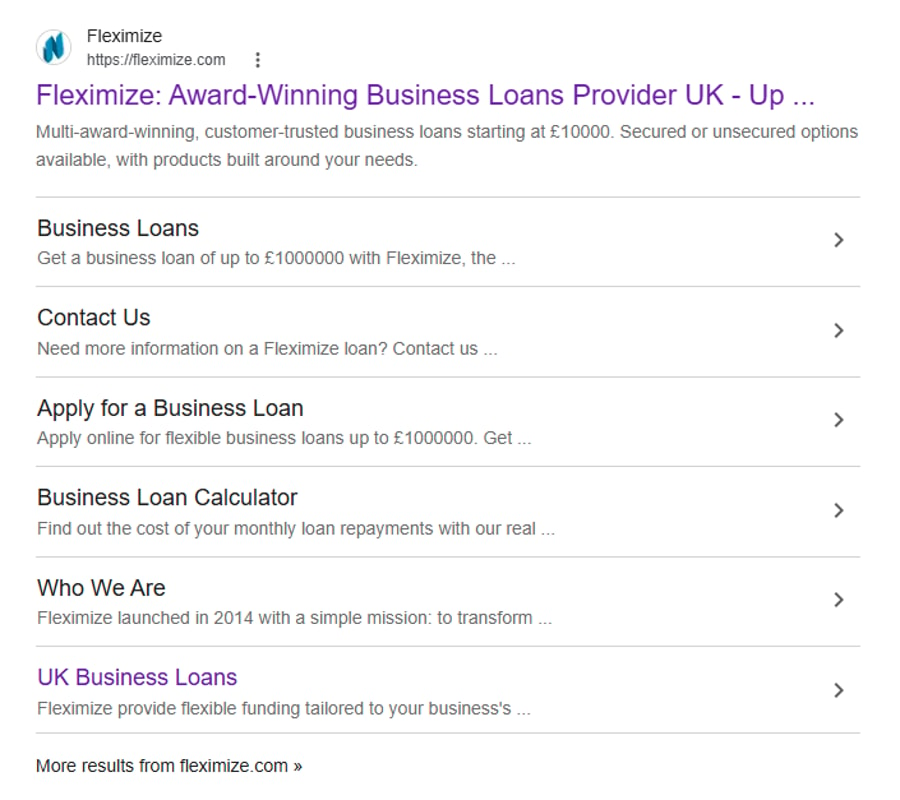
Sitelinks under a Fleximize ad on Google SERP
A benefit of using the sitelink extension is that it gives searchers four additional routes into your site – all from one ad. If someone's already decided they want to contact you, they can do it in one click.
Tips:
Use descriptive, benefit-led text (e.g. "Get a Free Quote" not "Contact")
Point each link to a genuinely useful, distinct page
Use at least four sitelinks so Google has options to display
Call and location extensions
Call extensions add your phone number directly to your ad. On mobile, users can tap to call without visiting your site at all. For service businesses, tradespeople, or anyone who converts better over the phone, this is one of the most valuable extensions available.
Location extensions display your business address, a map pin, and your distance from the searcher. They require your Google Business Profile to be linked to your Google Ads account. Once connected, Google can pull your address, opening hours, and directions automatically.
Together, call and location extensions are particularly powerful for local businesses – they answer two of the most common searcher questions ("where are you?" and "how do I reach you?") directly in the ad itself.
Callout and structured snippet extensions
Callout extensions let you add short, non-clickable phrases to your ad – typically used to highlight USPs, for example "Free Delivery," "No Setup Fees," "UK-Based Support," "Open 7 Days."
They're simple to write and powerful in aggregate. A well-chosen set of callouts can quickly communicate why someone should choose you over a competitor.
Structured snippet extensions give you a header and a list of values underneath. For example:
Services: Web Design, SEO, PPC, Social Media
Destinations: London, Manchester, Birmingham, Leeds
Brands: Nike, Adidas, New Balance, Puma
Use these to show the breadth of what you offer – they work especially well for retailers, agencies, and multi-location businesses.
Price extensions
As the name suggests, price extensions display your products or services with pricing directly in the ad. They're useful for businesses with transparent, competitive pricing – and they help pre-qualify clicks. If someone sees your price and clicks anyway, they're a more qualified lead.
Promotion extensions
Running a sale or limited-time offer? Promotion extensions let you flag it directly in your ad with a price cut or percentage discount. They're a quick way to make time-sensitive campaigns more visible.
Message extensions
Message extensions add a text button to your ad, letting mobile users send you a message instead of calling. This is useful if your customer base prefers texting, or if you want to capture enquiries outside business hours.


Get our newsletter!
Sign up to receive the latest advice, insights and tips.
The 5 extensions every small business ad needs
Not sure where to start? These five should be on every SME's Google Ads account:
Sitelink extensions – more routes into your site, higher CTR
Callout extensions – highlight your USPs at a glance
Call extensions – make it easy for customers to ring you
Location extensions – essential for any business with a physical presence
Structured snippet extensions – show the range of what you offer
Ad extension ROI
Here's how different extension types typically perform, based on industry benchmarks:
Extension type | CTR impact | Best for | Difficulty |
Sitelink extensions | Up to 20% (with 4 sitelinks)* | All businesses | Low |
Call extensions | Part of 10–15% avg uplift* | Service businesses, local SMEs | Low |
Location extensions | Part of 10–15% avg uplift* | Local/physical businesses | Low |
Callout extensions | Part of 10–15% avg uplift* | All businesses | Very low |
Structured snippets | Part of 10–15% avg uplift* | Retailers, agencies | Low |
Price extensions | Variable | Competitive pricing, e-commerce | Medium |
Promotion extensions | Variable | Sale periods, seasonal campaigns | Low |
Google reports an average 10–15% CTR uplift from adding a new extension, and up to 20% when four sitelinks show. Figures vary by extension type, industry, and account.
How to add extensions to your Google Ads campaign
Adding ad extensions takes around five minutes. Here's how:
1. Go to ads.google.com and sign in to your account.
2. In the left-hand menu, click Assets (previously labelled "Extensions"). You'll see a list of all extension types available.
3. Extensions can be applied at three levels:
Account level – applies to all campaigns
Campaign level – applies to one specific campaign
Ad group level – applies to one specific ad group
For most small businesses, account-level extensions are the easiest starting point. You can always override them at campaign level later.
4. Click the + button and select your extension type, for example, Sitelink. Fill in all available fields, including the optional ones. The more information you provide, the better Google can optimise which extensions to show.
5. Advanced Options let you control when and to whom extensions appear. Useful examples:
Show call extensions only during business hours
Show promotion extensions only during a sale period
Show mobile-only extensions for call or message types
6. Once live, check your extension performance in the Assets report. You can see impressions, clicks, and CTR for each extension individually – use this to spot what's working and cut what isn't.
Best practices for your ad extension strategy
Use at least four extension types per campaign. Google recommends this as a minimum. More extension types give Google more options to show the most relevant combination for each search.
Keep sitelink text short and specific. Two to four words is ideal. For example, "Get a Free Quote" will typically outperform "Contact Our Sales Team Today".
Match extensions to intent. A call extension makes sense for high-intent searches ("emergency plumber London"). A price extension makes sense for comparison searches ("office chair under £200").
Review performance monthly. Check which extensions are generating clicks and which are just taking up space. Cut underperformers and test new copy.
Don't duplicate your headline. Extensions should add information, not repeat what's already in your ad.
Apply extensions at account level first. It's quicker, ensures consistency, and can be overridden at campaign level when needed.
Ready to scale your Google Ads?
Extensions will stretch your ad budget further – but the real gains come when you have the budget to compete properly for the keywords that matter.
At Fleximize, we offer fast, flexible business loans designed for growth. Whether you're scaling your Google Ads spend, hiring a digital marketing team, or investing in a campaign that'll move the needle, we can help.
Apply online today and you could receive a decision – and sometimes even funding – in as little as 24 hours.
Your common questions answered
Google ad extensions (now called assets) are additional pieces of information added to your Google Ads – such as phone numbers, links, addresses, and callouts. They expand your ad, improve Ad Rank, and increase click-through rates.
Yes. Adding extensions costs nothing. In the same way as a ‘normal’ ad, you only pay when someone clicks on it. This makes them one of the highest-ROI improvements you can make to any Google Ads campaign.
For most SMEs, sitelink, callout, call, and location extensions deliver the best results. Sitelink extensions alone can increase CTR by up to 15%, according to Google.
Sitelinks give searchers multiple ways to enter your site from a single ad – linking directly to your most relevant pages. This increases CTR, reduces the steps to conversion, and improves the overall relevance of your ad.
Sitelink extensions are clickable links that appear below your main ad, pointing to specific pages on your website. They let searchers jump straight to the page they need – Contact, Pricing, Services, and so on – without navigating your site.
Go to your Google Ads account, click Assets in the left-hand menu, click the + button, choose your extension type, and fill in the details. Extensions can be applied at account, campaign, or ad group level.
Yes. Google's Ad Rank considers the expected impact of your ad format, including whether you're using relevant extensions. More relevant extensions typically improve your rank – which can mean better placement without increasing your bid.
Google recommends at least three extension types per campaign. More gives Google more options to show the most relevant combination for each search query, which improves performance over time.
Callout extensions are short phrases used to highlight USPs (e.g. "Free UK Delivery").
Structured snippets use a header and a list to show the range of what you offer (e.g. "Services: SEO, PPC, Web Design").
Both are non-clickable – they add context rather than links.
Yes. Advanced Options let you control device targeting for individual extensions. Call extensions and message extensions, for example, are often set to mobile-only since they're more useful on smartphones.
A location extension displays your business address, a map pin, and your distance from the searcher. It requires your Google Business Profile to be linked to your Google Ads account. Essential for any business with a physical location.
Not directly. Quality Score measures how relevant and useful your ad is – based on your expected CTR, your ad copy, and your landing page. Extensions don't feed into that calculation directly.
What they do affect is your Ad Rank – the separate score that determines your ad's position on the page. Google factors in the expected impact of your extensions when calculating Ad Rank, so relevant, well-chosen extensions can improve your placement without needing to increase your bid. And better CTR over time can gradually improve your Quality Score too.
Sitelink extensions consistently deliver the biggest uplift. According to Google, advertisers can see up to a 20% increase in CTR when four sitelinks show with their Search ads. Call extensions and location extensions also tend to perform strongly – particularly for local and service businesses where a phone number or address directly answers what the searcher needs.
Google only shows extensions when it thinks they'll improve performance. If yours aren't showing, the most likely reasons are:
Ad Rank is too low – extensions are more likely to show for ads with higher Ad Rank
The extension isn't relevant enough to the search query
Your budget is limited – lower-budget campaigns have fewer opportunities to trigger extensions
The extension has an error or is disapproved – check the Assets report in your Google Ads account for any policy flags
You haven't added enough extensions – Google needs options to work with; aim for at least three extension types per campaign
Check your Assets report to see impression data for each extension individually – it's the quickest way to work out what's going on.
Google recommends adding at least four sitelinks per campaign. This gives it enough options to pick the most relevant combination for each search. You can add up to 20, though Google will only ever show a maximum of six at once on desktop and two on mobile. The more well-written options you give Google, the better it can optimise – eight to ten sitelinks is a solid target for most SMEs.
Yes – and it does, automatically. Google uses machine learning to pick the combination of extensions most likely to improve performance for each individual search. Two people searching for similar things might see different extensions in your ad, and you can't force a specific asset to show every time.
What you can do is improve the pool Google selects from – by adding more extensions and keeping them relevant and up to date. Check the Assets report in your Google Ads account to see which are being served and how they're performing.
Do you have a question that you can't see? Check out our FAQ page.

How SMEs can Compete with Big Brands on PPC
— Read More — How SMEs can Compete with Big Brands on PPCHow SMEs can Compete with Big Brands on PPC
As digital advertising spend continues to rise year-on-year, paid search offers the perfect platform for small businesses to position their brands among market leaders – and contend

How PPC Campaign Data Can Enhance Your SEO Strategy
— Read More — How PPC Campaign Data Can Enhance Your SEO StrategyHow PPC Campaign Data Can Enhance Your SEO Strategy
PPC and SEO campaigns can work hand-in-hand to amplify your results. Here’s how.

Getting to Grips with the Basics of SEO
— Read More — Getting to Grips with the Basics of SEOGetting to Grips with the Basics of SEO
Adam Chard, from online retailer Victoria Plum, shares five tips on how small business owners can get to grips with the basic elements of SEO


These cookies are set by a range of social media services that we have added to the site to enable you to share our content with your friends and networks. They are capable of tracking your browser across other sites and building up a profile of your interests. This may impact the content and messages you see on other websites you visit.
If you do not allow these cookies you may not be able to use or see these sharing tools.